How to Create a QR Menu? Step-by-Step Guide
How to Create a QR Menu? Step-by-Step Illustrated Guide
Creating a QR menu for your business is much easier and faster than you think. You can launch your own digital menu in just minutes using the ZekMenu panel without needing complex technical knowledge or a designer. Here is the step-by-step guide to creating a QR menu:
Step 1: Registration and Business Information
First, register with ZekMenu. Enter your business name, logo, and basic contact information into the system. This information will appear on the first screen your customers see when they open the menu.
Step 2: Determining Categories
Categorize your products to keep your menu organized. Create main headings such as "Main Courses", "Drinks", "Desserts". You can easily adjust the order of categories by drag and drop method.
Step 3: Adding Products
It's time for the stars of your menu! Add each product under the relevant category.
- Product Name and Price: Write clearly and understandably.
- Description: Enter an appetizing description about the content of the product (e.g., "Blended with special spices, cooked in wood fire...").
- Image: Upload a high-quality photo of the product. Remember that the sales rate of products without visuals is lower.
Step 4: Creating and Downloading the QR Code
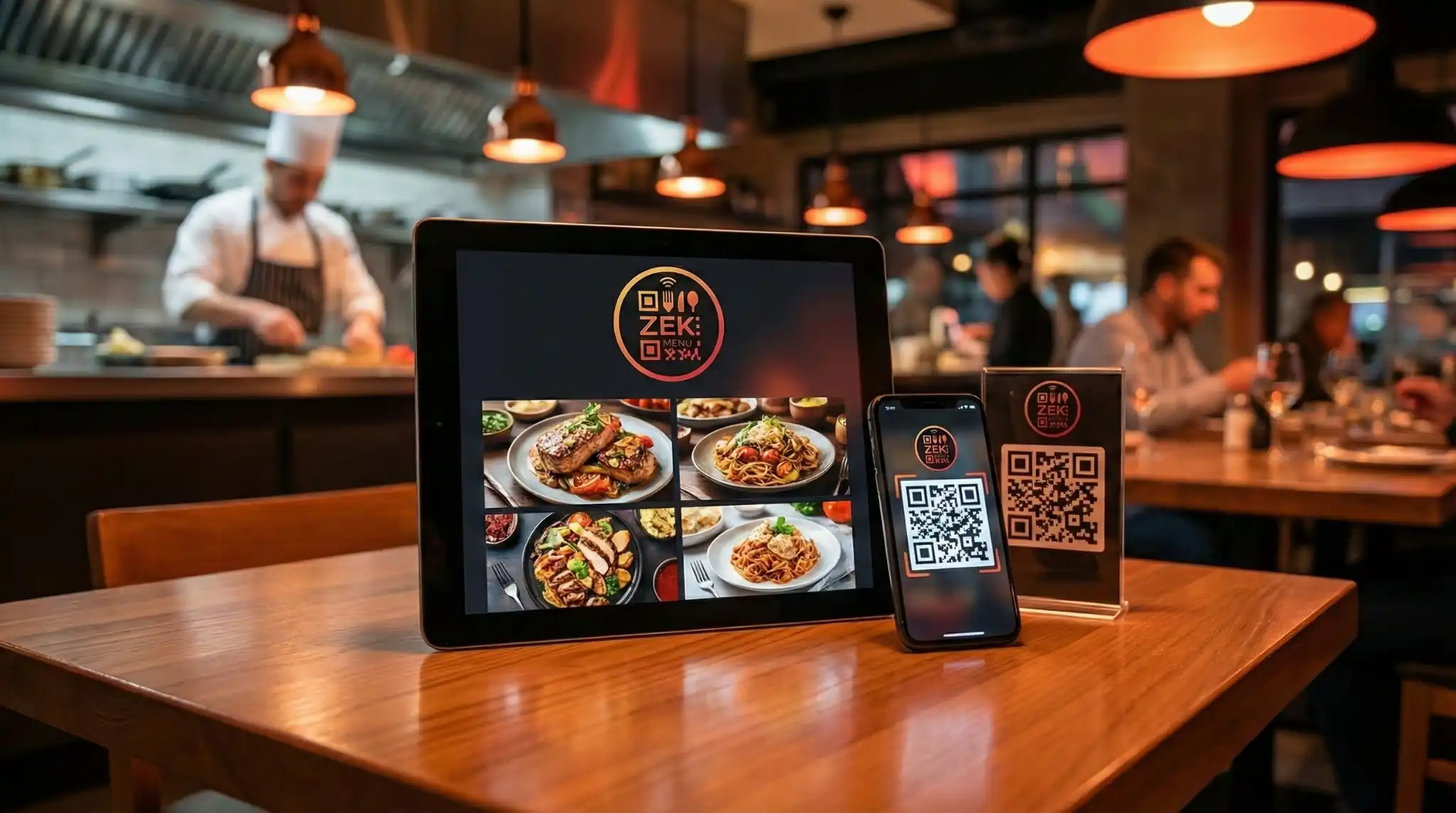
When your menu content is ready, the system will generate a unique QR code special for you. You can download this code in different formats (PNG, SVG, PDF) from the ZekMenu panel. If you wish, you can also create individually numbered QR codes for each table.
Step 5: Printing and Placement
Place the downloaded QR codes in visible places of your business by printing them on table stands (plexiglass), stickers, or brochures.
Tips
- Test: Before printing the codes, definitely scan them with your own phone and check if the menu opens correctly.
- Add Wifi Info: You can provide convenience to your customers by adding your business's Wifi password under the QR code design.
Congratulations! Now your business has a modern, fast, and stylish digital menu.
Ready to digitize your menu?
Enjoy QR menu, online ordering and multi-branch management with ZekMenu. Try free for 7 days.
Related posts
2026 Ramadan Menu Suggestions for Restaurants
Prepare your business for Ramadan 2026. Increase your revenue with Iftar menu examples, suhoor packages, and digital menu advantages.
ZekMenu Customization Options and Brand Identity
Customize your digital menu with your brand's logo and corporate identity. Discover ZekMenu's advanced theme and design options.
ZekMenu Setup Guide: Digital Menu in 10 Minutes
Create your digital menu in 10 minutes without technical knowledge. Practical guide to ZekMenu installation, product addition, and QR code creation.